
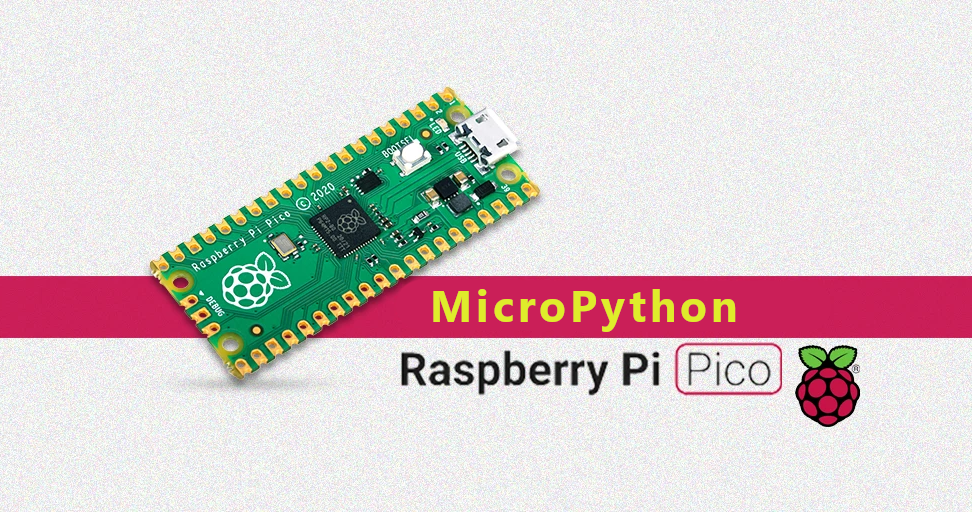
Programming Raspberry Pi Pico using Micro-Python
Raspberry Pi Pico became a very popular board due to its price tag, and it is very easy to start with Micro Python. Here will set up Pico for Micro Python.
Raspberry Pi Pico was launched recently. It became very popular due to its price and features. As we are moving forward in newer generations of controllers, we are observing cost-effective yet better-performing controllers. Here the Pico comes with an RP2040 chip, which the RaspberryPi Team developed. It is cheap, small, and draws very low power.
The Raspberry Pi Pico chip is a dual-core Arm processor (running at 133MHz), which also comes with 264KB of RAM, 26 GPIO pins, including three analog inputs, a micro-USB port, and a temperature sensor.
To run something on the Raspberry Pi Pico, it’s quite easy. You plug your device into your computer using the micro-USB port. You boot up the Raspberry Pi Pico while pressing the button. The device will appear on your computer as an external drive.
Installing MicroPython On Raspberry Pi Pico
The installation process of MicroPython on Pico is very easy. You need to go to the raspberry pi website and go to "Products> Pico > Get started > MicroPython section > UF2 file".
To cut the process short, I have uploaded the file to my Github. You can click this link to download it.
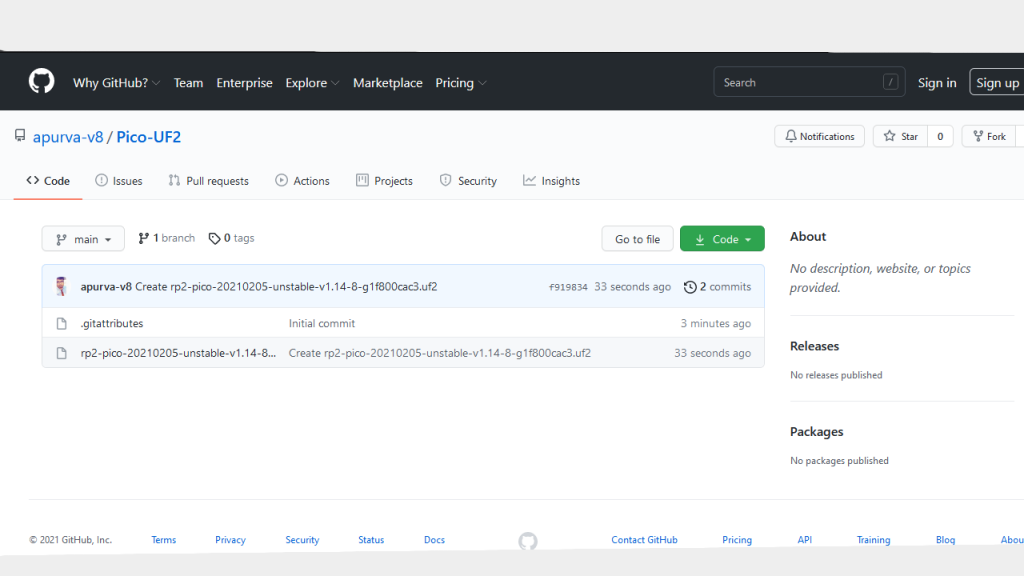
Once the download is completed, extract the file, and you will see the uf2 file as shown in the above image.
Press the BOOTSEL button, and while pressing, connect it to the PC using a micro USB port given on the pico.
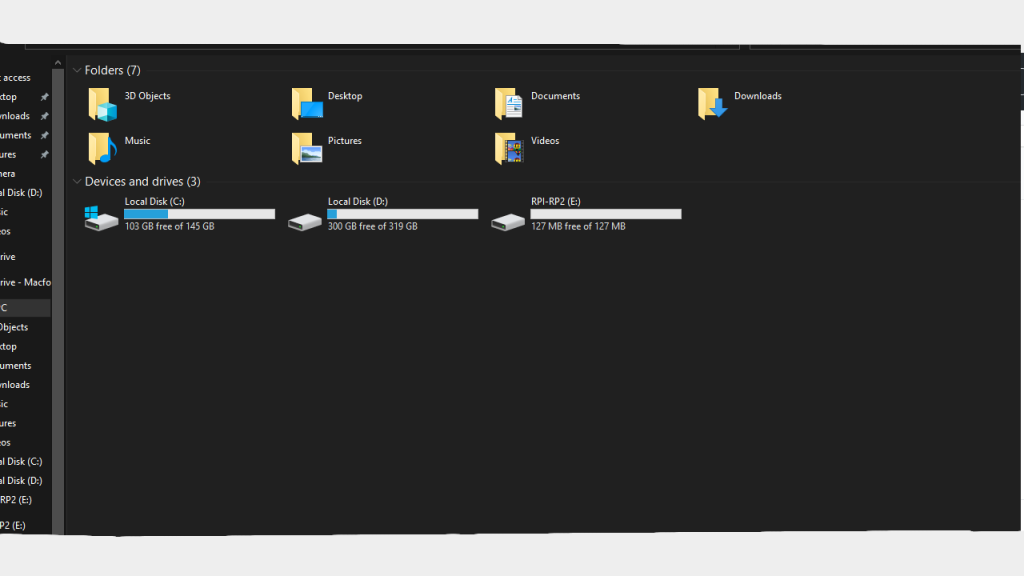
After connecting to the PC, you will see something like the image below. It will show as a mass storage device with 127MB of Space.
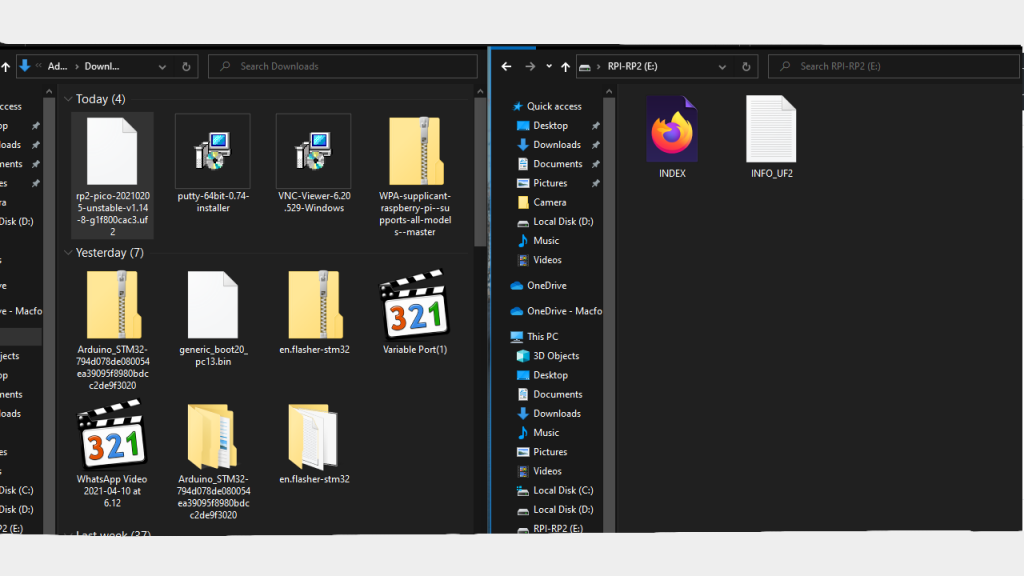
Then open the Pico storage, and you will see something like this on the right-hand side. Now, paste the uf2 file you downloaded. The pico will reboot itself and go into MicroPython mode.
When these initial steps are done, you can move further to check if the Micro Python is installed properly.
Accessing MicrPython REPL (Read, Evaluate, Print, Loop)
To code on Pico on Micro Python, we need to ensure that Python is installed properly on our computer. You can download Python from here.
While installing Python, you will need to make sure to tick on "add to path" as shown in the image below.

After python installation, we need an IDE to code on it. Here I am going to download Thonny Python IDE. You can download it from here.
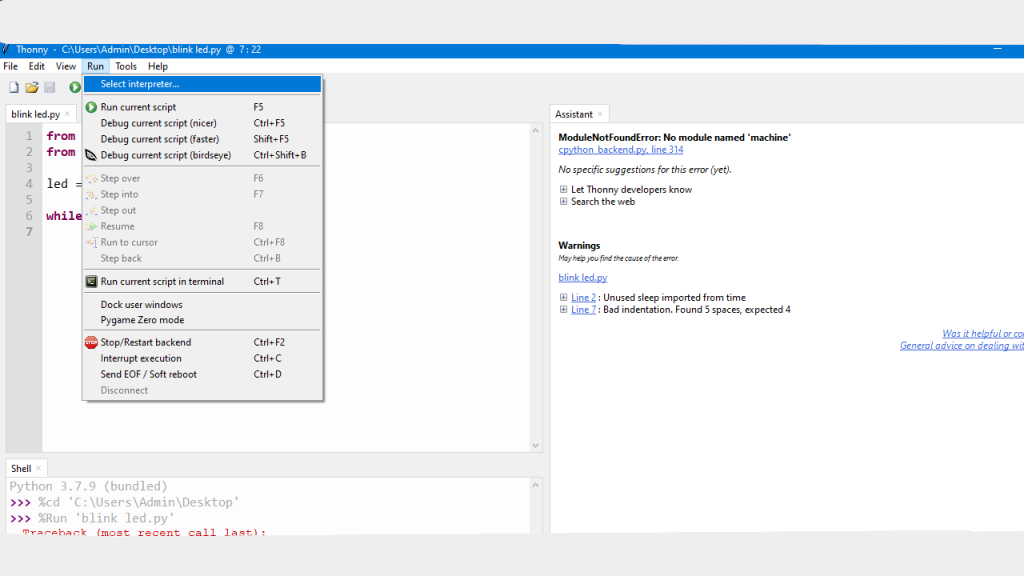
When downloaded and set, open the IDE and go to "Run> Select Interpreter" as shown in the image below.
Select Micro Python Raspberry Pi Pico here in the interpreter list, as shown in the image below.
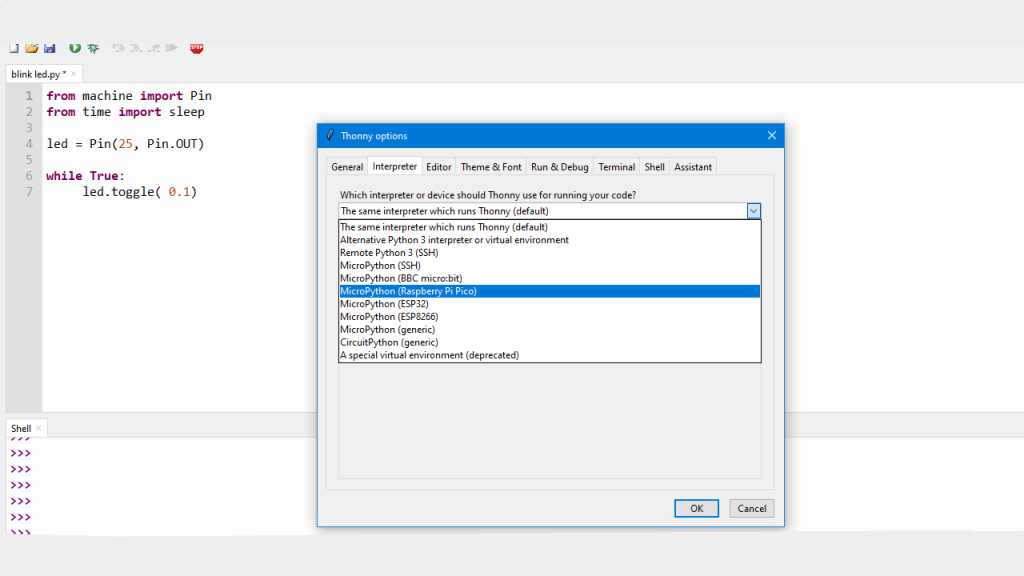
We select Raspberry Pi Pico, and select the COM port it is connected to.
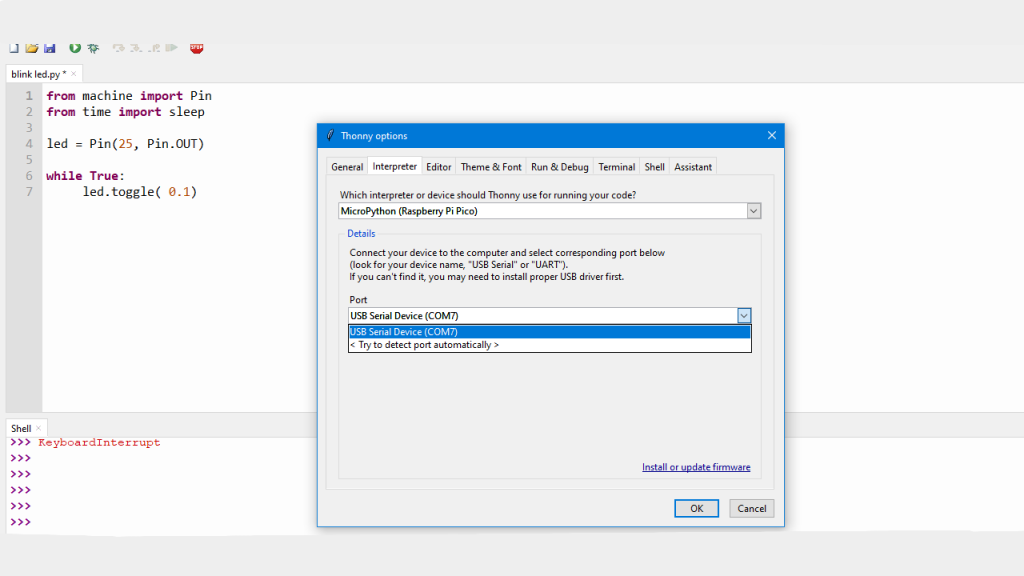
Here, my Pico is on COM7. To check this, you can open the device manager and see disconnecting and connecting which port the Pico is connected to. Select Your Raspberry Pi Pico COM port here. Now you can start programming.
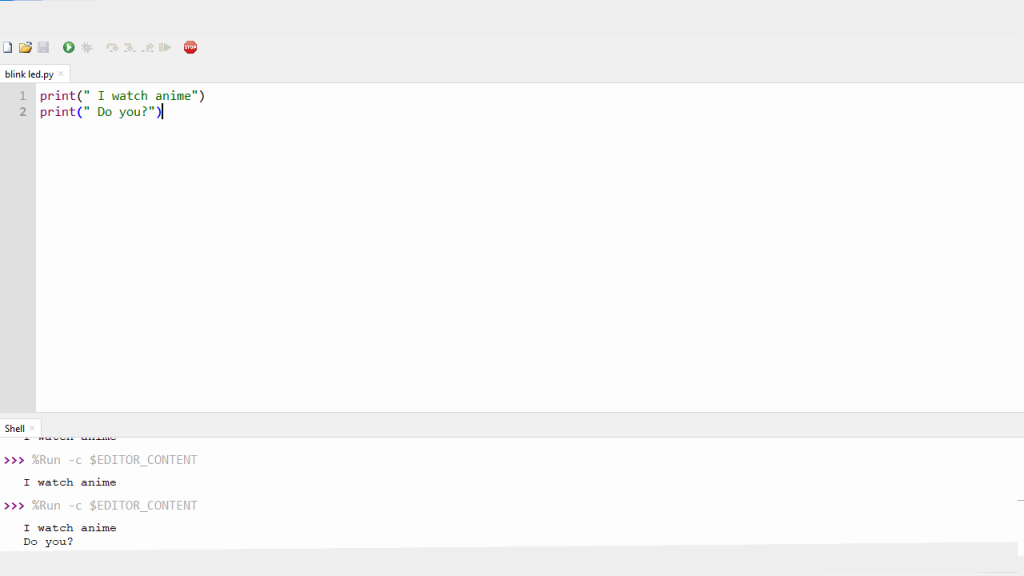
I will test it here by using the print command as shown above. The Pico is executing the print command I have used above. This way, we can test if the setup of MicroPython is successful. You can see the output in the above.
Programming the Pico
Programming the Pico is very simple with MicroPython once you've set up the above. That is the only thing we need to start programming with Pico. You can do various sorts of code and try using the full capability of the Pico with your code. Pico can also be programmed in the C language.
We have made a series of videos on programming tutorials, which you can check by clicking this link. This series is specially made for the Pico board. It will help you set up the board with C and Python. We have also done a program in the video to test the onboard temperature sensor.
We will now move towards writing a blink LED sketch. A blinking LED is like hello world for electronics hardware people. :)
Testing (Blinking On-board LED)
You can see in the image below that I've written the blink code. I will put the explanation below.
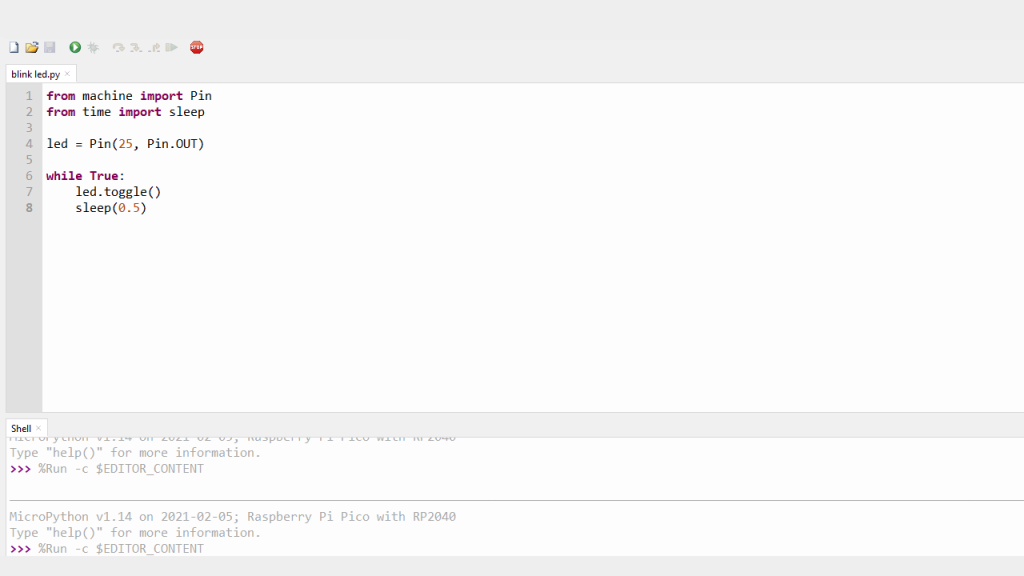
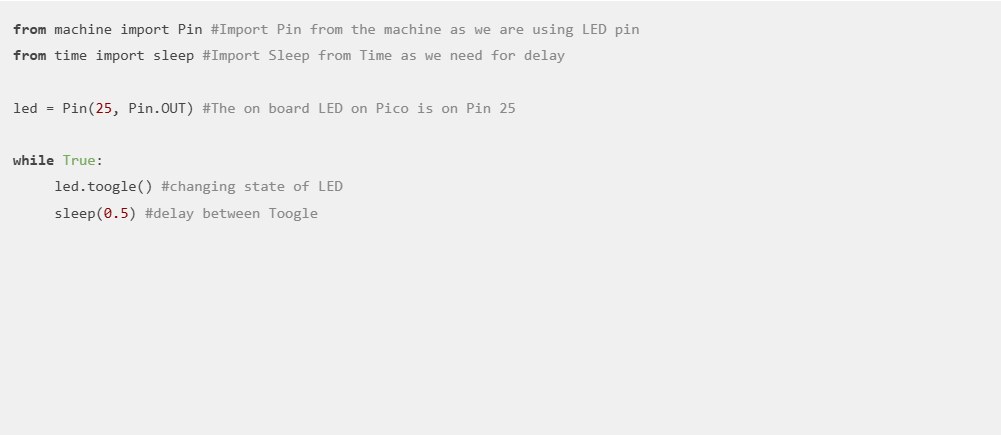
Here, I've put the explanation in the comment lines. You can directly copy-paste the code below and save it in Python format or get it from this Github link.
Final Words
Programming on Pico using MicroPython is a very easy process. Anyone can start programming in a few minutes. The board is cheap and comes with lots of features. I am hoping to see this board stand out in dev boards like Arduino for the long haul. See you next time. Sayonara. Stay Safe.
Recent Posts
-
Programming Raspberry Pi Pico using Micro-Python
Raspberry Pi Pico became a very popular board due to its price tag, and it is very easy to start w …5th Mar 2026 -

Pixel Electric Company Becomes Official WhalesBot Distributor in Kenya!
We are excited to announce a major milestone in our journey toward empowering the next generation of …11th Jun 2025 -

Pixel Electric Becomes Official Reseller of ACEBOTT STEM Kits in Kenya
We are excited to announce that Pixel Electric Company is now an official reseller of ACEBOTT produc …1st Oct 2024